
Request or translate forecasts in an instant
Your iPhone can quickly request and translate any BoltWX message into an easy to read, comprehensive forecast using the BoltWX iOS Shortcuts. They're our recommended method for using BoltWX on an iPhone.
Quickly request forecasts
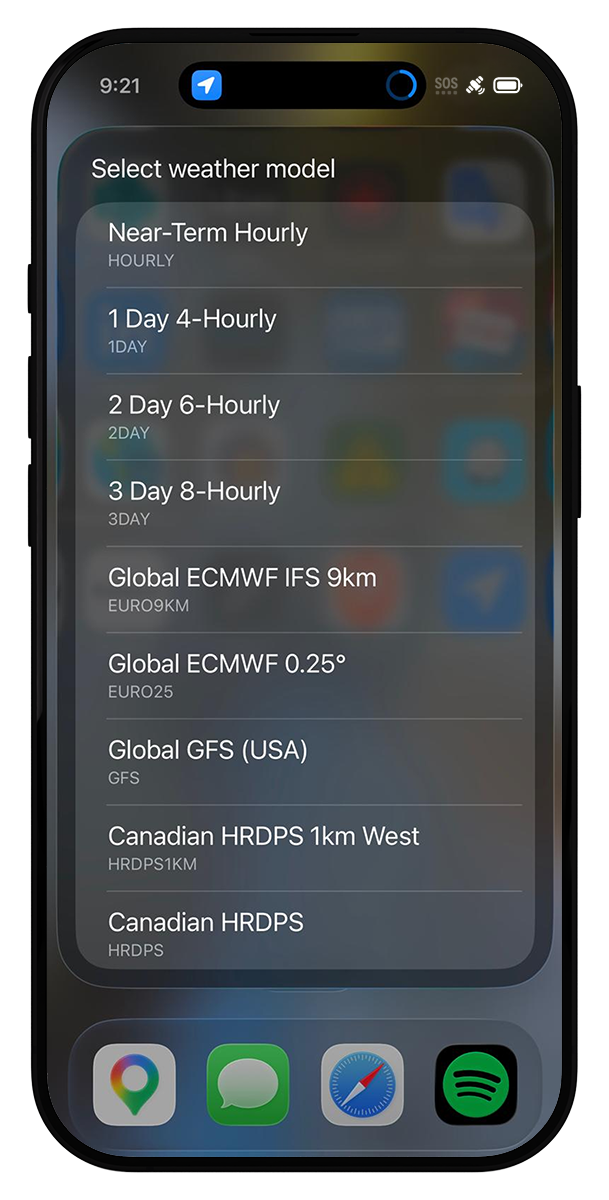
Use the BoltWX Send shortcut to instantly create a message with your access code and GPS coordinates. Select your preferred weather model from the dropdown list and simply press send.
Make forecasts easy to read
Use the BoltWX Translate shortcut to translate any BoltWX abbreviated forecast message into an easy to read weather report, even without cell service.
No app required
BoltWX shortcuts use the native iOS Shortcut functionality already on your iPhone.
Quickly request forecasts
To use the BoltWX Send shortcut to simplify sending messages to BoltWX, follow these instructions:
- Download the BoltWX Send shortcut here
- Your iPhone will prompt you to import the shortcut into the iOS Shortcuts app.
- The first time you import the shortcut, you will be asked to enter your BoltWX access code. The shortcut will remember this to make sending messages easier in future.
- A list of forecast models will appear. Select the model you want to request. If you are using the free version of BoltWX, select "Free 3-Day Forecast". Other forecasts are only available to BoltWX Pro Subscribers.
- When you run the shortcut the first time, it will request location access so that it can include your GPS coordinates. Tap "allow".
- The messages app will open. Tap "send" and, if using satellite messaging, follow your iPhone's instructions.
- You will be prompted to open your BoltWX messages to see your forecast.
Tip: Pair BoltWX Send with the BoltWX Translate shortcut for end-to-end simplicity.

Make forecasts easy to read
Use the BoltWX Translate shortcut to translate any BoltWX abbreviated forecast message into an easy to read weather report, even without cell service.
To use BoltWX Translate, follow these instructions:
- Download the BoltWX Translate shortcut here
- Your iPhone will prompt you to import the shortcut into the iOS Shortcuts app.
- Go to your messages app and copy a forecast message from BoltWX (long press on the message and select "copy" from the pop-up menu).
- Go to the Shortcuts app and run the BoltWX Translate shortcut by tapping it.
- The translated forecast will appear on the screen.
BoltWX iOS Shortcuts FAQ
To use the BoltWX Send shortcut to simplify sending messages to BoltWX, follow these instructions:
- Download the BoltWX Send shortcut here
- Your iPhone will prompt you to import the shortcut into the iOS Shortcuts app.
- The first time you import the shortcut, you will be asked to enter your BoltWX access code. The shortcut will remember this to make sending messages easier in future.
- A list of forecast models will appear. Select the model you want to request. If you are using the free version of BoltWX, select "Free 3-Day Forecast". Other forecasts are only available to BoltWX Pro Subscribers.
- When you run the shortcut the first time, it will request location access so that it can include your GPS coordinates. Tap "allow".
- The messages app will open. Tap "send" and, if using satellite messaging, follow your iPhone's instructions.
- You will be prompted to open your BoltWX messages to see your forecast.
Tip: Pair BoltWX Send with the BoltWX Translate shortcut for end-to-end simplicity.
To use the BoltWX Translate shortcut to simplify sending messages to BoltWX, follow these instructions:
- Download the BoltWX Translate shortcut here
- Your iPhone will prompt you to import the shortcut into the iOS Shortcuts app.
- Go to your messages app and copy a forecast message from BoltWX (long press on the message and select "copy" from the pop-up menu).
- Go to the Shortcuts app and run the BoltWX Translate shortcut by tapping it.
- The translated forecast will appear on the screen.